

How to Use Snapchat Filters on Zoom in 2025 – Fun & Easy Setup Guide
When you are at a Zoom meeting, adding a fun filter can make your conversation more enjoyable and memorable. The easiest way to do that is by adding Snapchat filters to your Zoom video call. These Snapchat filters let you change your background if you don’t have a good background, add creative effects, and boost your personality.
Using Snapchat filters is simple; all you need to do is download and install Snapchat and Zoom on your computer.
After installation, choose the filter in Snapchat, then go to Zoom settings, allow the camera from the default to the Snapchat camera and there you go; your filter is applied to your Zoom video call.
You can even switch between different filters while on video call, just like you do in Snapchat. The amazing thing is that your call won’t be disturbed. If you want to switch back to the main camera, you can easily switch. Whether you are joining a casual meeting or catching up with your friends, Snapchat filters always add spice to your meeting makes your meeting enjoyable instead of dull.
If faces any issues while using filters, you can simply restore your Snapchat to solve your issue.
Why Use Snapchat Filters on Zoom?
Zoom meetings are an essential part of our remote work, online classes and casual hooks up friendly meeting, but to be honest, sometimes these meetings feel dull. The best way to make your meeting interactive and engaging is by using Snapchat filters in your Zoom video call.
Here are a few reasons why people prefer using filters in their meetings.
Change of background
Sometimes when you are attending an online meeting at your home, you have a messy background; using Snapchat filters can make your background clear and add visual effects.
Enhance Your Look
People prefer using Snapchat filters in their online Zoom meetings because it smooths your skin and brightens your face, adding extra stylish effects.
Keeping meetings entertaining
Whether you are attending a business meeting or a casual, friendly hookup, Snapchat filters add a friendly and relaxed atmosphere.
System Requirements for Snapchat
Before using filters on your Zoom video call, make sure your computer meets the Snapchat system requirements.
Here is what your computer should have to use filters in your Zoom video call.
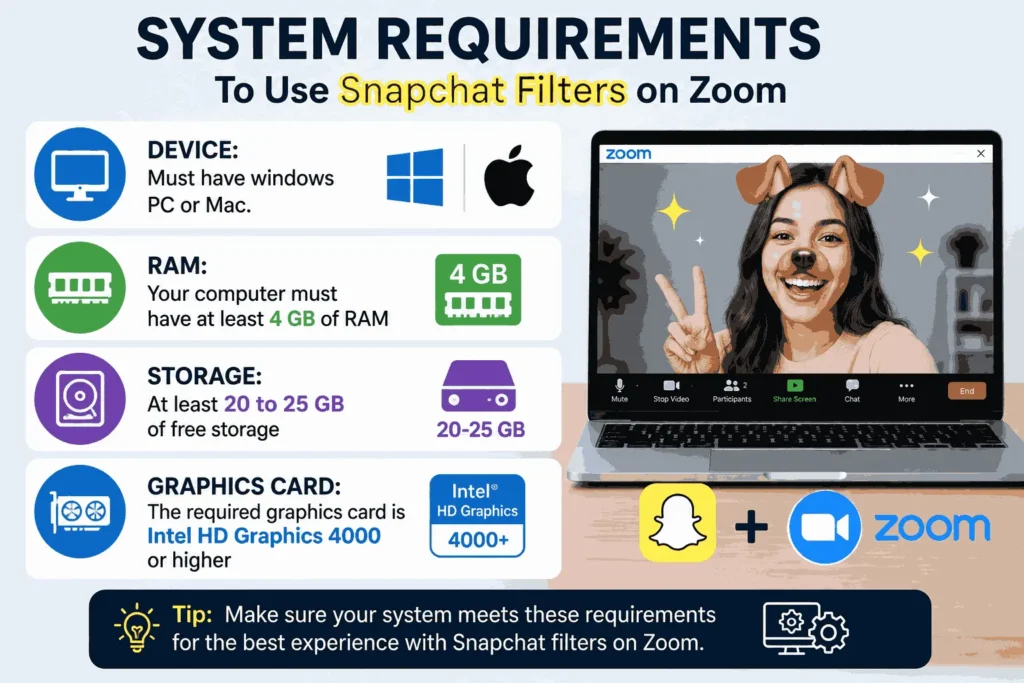
- Device: Must have windows pc or Mac.
- RAM: Your computer must have at least 4 GB of RAM
- Storage: At least 20 to 25 GB of free storage
- Graphics Card: The required graphics card is Intel HD Graphics 4000 or higher
If your computer meets these requirements, you are ready to install and setup snapchat camera.
How to Set Up Snapchat camera for zoom
Setting up Snapchat Camera in Zoom only takes a few minutes.
Download and install both Snapchat and Zoom on your computer.
In the second step, launch Snapchat Camera. Go to Snapchat Camera, search for the filter you want to use in Zoom
Open Zoom settings.
In Zoom settings, go to the video section and select Snapchat Camera as your main camera.
Select or start your meeting; your filter will automatically be applied.
If you want to change the filter during your video,o you can do that by going back tothe Snapchatt camera change filter there; your filter will automatically be changed in Zoom.
How to use a Snapchat filter during a video call
You can use Snapchat filters before and during a video call.
Using a filter before a video call
Before joining the Zoom meeting, you can use the Snapchat filter. Open your Snapchat camera, select the filter you want to use, click on the filter, then go back to Zoom. Your selected filter in Snapchat will automatically appear.
Change filter during meeting
Before joining the Zoom meeting, you can use the Snapchat filter. Open your Snapchat camera, select the filter you want to use, click on the filter, then go back to Zoom. Your selected filter in Snapchat will automatically appear.
- 1. Click the arrow next to the stop button: In the first step, look at the bottom of your Zoom screen; you will see the stop video option there. You will see a small arrow;w click on it.
- 2. Select Snapchat camera: After clicking the arrow, different options will appear. There, you should select the Snapchat camera option. By clicking on it, you can change your filters in a live meeting without disturbing the call.
- 3. Applying new filters: Want to change a filter? Simply go to the Snapchat camera, change your filter; your filter will be automatically updated in Zoom.
How to turn off filters on Zoom
Here is how to turn off filters in Zoom.
- Open your Zoom settings.
- Go to the video section.
- Change your camera setting back to normal from Snapchat to regular camera.
By doing this, all filters will be removed, and the original camera will be restored.
Final thoughts
Using Snapchat filters in Zoom is the best way to create fun or enhance a meeting.
By connecting your Zoom and camera together, you enhance the background, add beauty, and interact in a fun way. From online work to business meeting filter add fun and a personal touch to your Zoom.
Frequently Asked Questions
For more information, visit the official Snapchat support center. Do check out our Snapchat planet order for more tips to boost your Snapchat score.


